
A well-shot food photo can look genuinely appetizing — glistening sauce, perfectly melted cheese, steam caught just right against the light. But food is fundamentally about the senses, and a still photo can only ever suggest what steam, drip, or melt actually feel like in motion. Image to video tools finally let a food photo deliver on that promise, turning a static shot into a short clip that behaves the way real food does. Dreamina, running on its most advanced video generation model, Seedance 2.5, gives restaurants, food brands, and home cooks a way to make that shift without a full video shoot.
Why a food photo alone leaves the appetite unfinished
So much of what makes food appealing happens in motion — cheese stretching as it pulls apart, steam curling off a hot dish, sauce slowly dripping down the side of a plate. A still photo can hint at all of that, but it can't actually deliver the sensory payoff. Motion is what finally lets a food photo behave the way the dish itself would in person.
What makes a food video genuinely appetizing
A handful of things separate a food clip that works from one that falls flat. The motion needs to be tied to real food behaviour — steam, melt, drip — rather than generic movement layered on top of the dish. Lighting should stay warm and inviting rather than cold or clinical. And the pace should be slow enough to actually register as delicious, since rushing past the details defeats the purpose of showing them at all.
Bringing your food photo to life with Dreamina
Step 1: Upload your photo and describe the motion
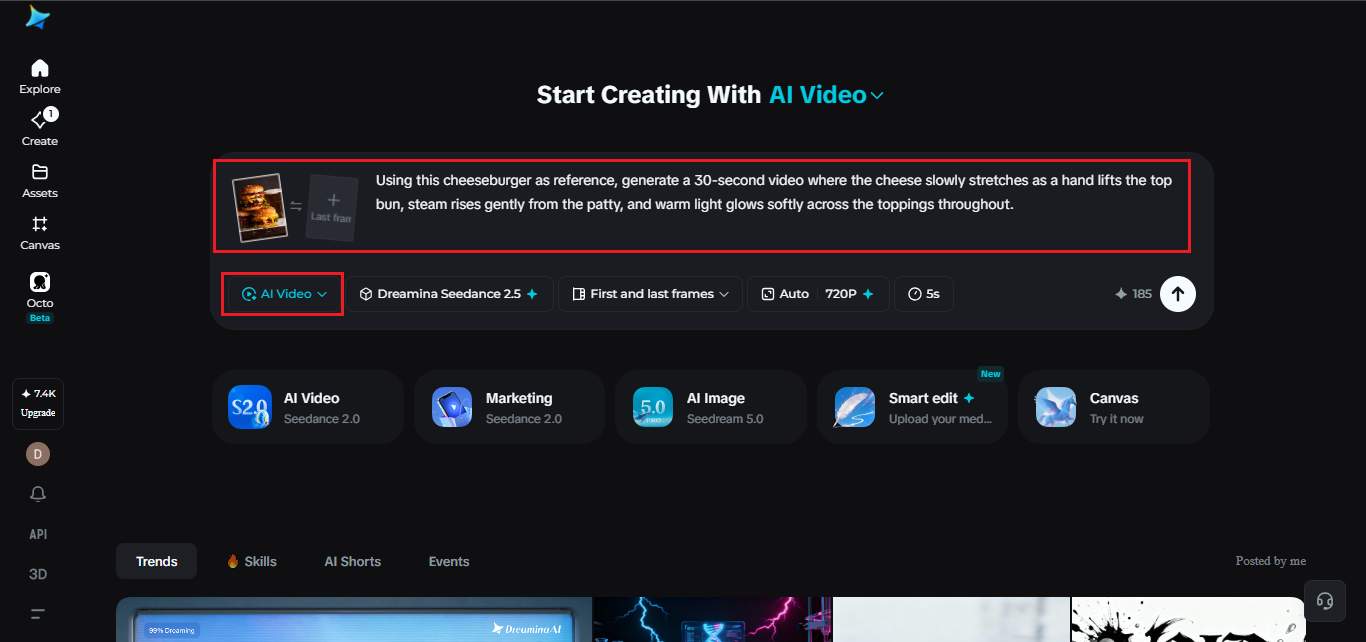
Open Dreamina and head to the "AI Video" section, then use "Add reference image" to bring in your food photo. From there, describe the motion you're picturing.
Here's an example for a 30-second clip: "Using this cheeseburger as reference, generate a 30-second video where the cheese slowly stretches as a hand lifts the top bun, steam rises gently from the patty, and warm light glows softly across the toppings throughout."
Step 2: Generate with Seedance 2.5
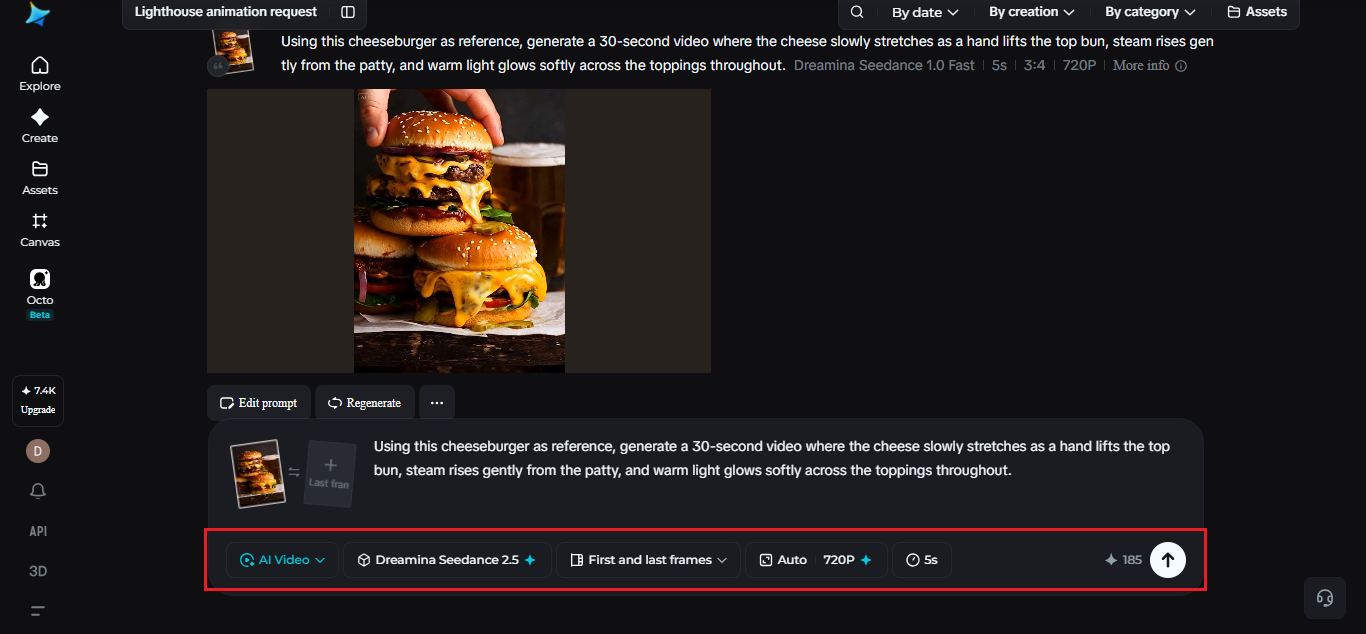
Pick the Seedance 2.5 model, choose your video length, then select an aspect ratio — 1:1 or 4:5 for a menu or social post, 9:16 for Reels and TikTok. Tap Dreamina's generate icon and let the dish come to life.
Step 3: Refine and export the finished clip
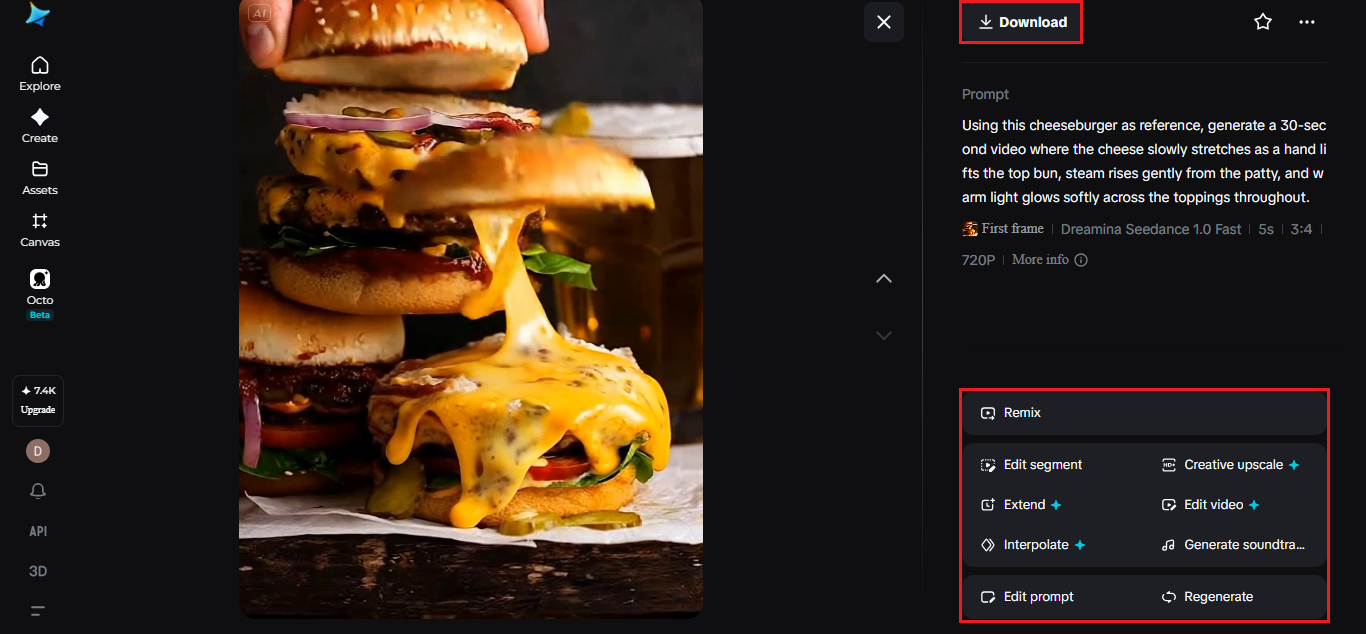
Run it through Dreamina's editing tools first — Upscale adds richer texture and detail, Generate Soundtrack lays down a light sizzling or ambient layer — then export and use it across your menu or marketing channels.
What Seedance 2.5 brings to food motion
Seedance 2.5, Dreamina's most advanced video generation model, is well matched to the small, sensory motion food content depends on.
Texture and warmth that feel genuinely real
Comprehensive quality improvements reduce the flat "AI look" and add believable texture and warmth, so steam, glaze, and melt all read as appetising rather than artificial.
Precise touch-ups on a single detail
Local editing lets a single garnish or detail be adjusted without regenerating the entire scene, useful when only one part of an otherwise great shot needs a fix.
A complete creative brief
Multimodal input support means a menu description or brand style reference can be layered in alongside the photo, giving the model more context than the image alone.
Room for a longer sequence
Extended duration up to 180 seconds in Ultra-long mode supports a full recipe-style sequence when a longer piece is needed for a bigger project.
Building a small library from one photo shoot
A single strong food photo doesn't need to produce just one video. The same shot can generate a close-up detail clip, a wider ambient piece, and a quick teaser, each suited to a different platform. Treating one photo as the source for a handful of videos tends to get significantly more value out of a single shoot.
Writing prompts that capture texture
Naming specific sensory details — steam, glaze, melt, drip — gives the model a much clearer sense of what kind of motion to render, rather than defaulting to generic movement across the dish.
Choosing the right format for the platform
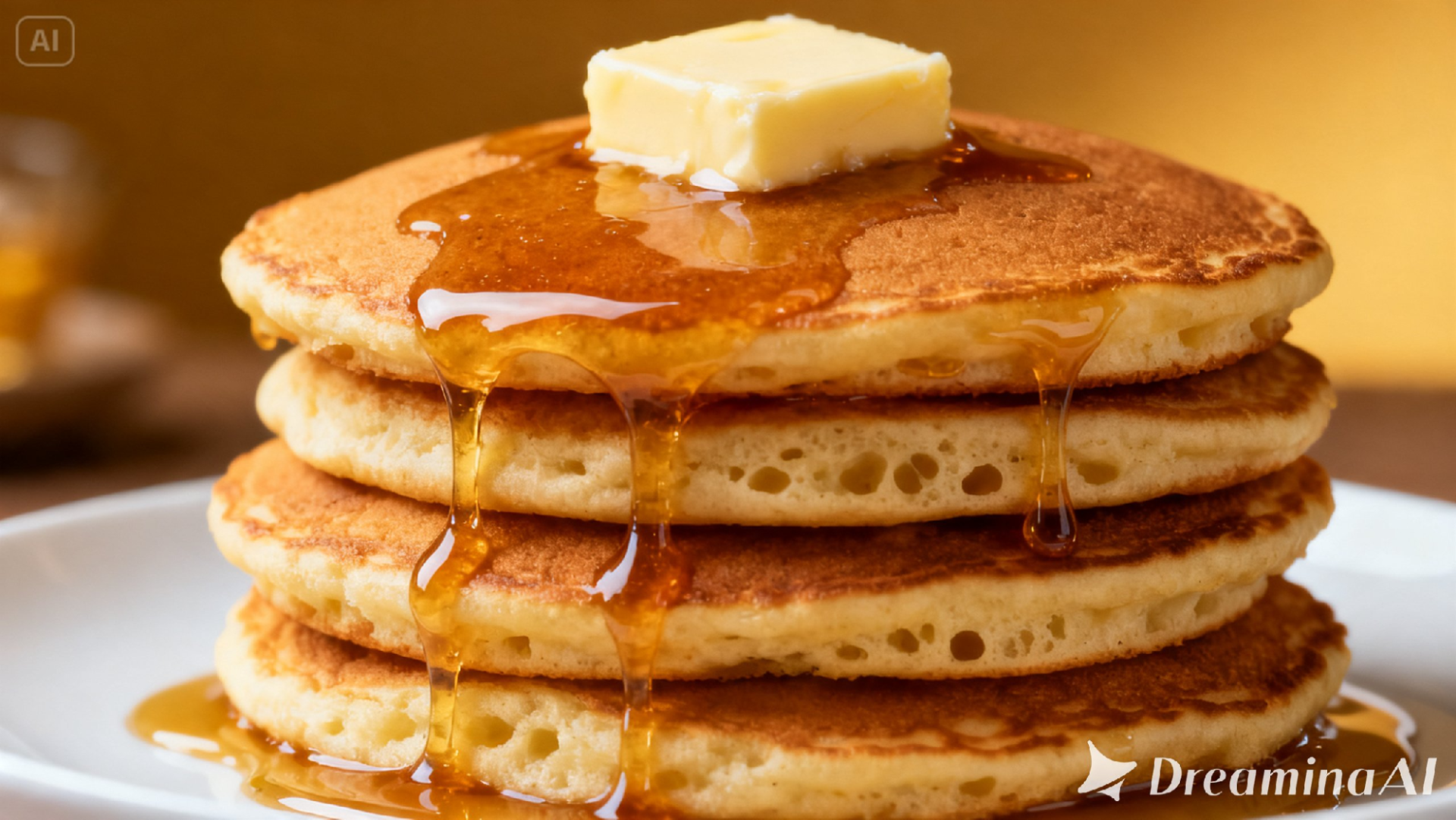
A square or vertical format suits a menu screen or social feed post, while a slightly longer, wider version works well for a website hero section or a paid ad.
When looking at what’s just off-screen
A still photograph of food can show a fork, a napkin, or even a hand just on the border of the shot, and determining whether such things need to be incorporated into the action becomes more important than one might think. The action of having a hand come in to pick up the food will make the scene lively, as long as the model isn’t left guessing and making up a hand. That's all wrong.
A few habits that undercut a food video
Some choices tend to weaken the result:
- Overcomplicating the prompt with too many elements moving at once
- Choosing lighting language that reads as cold instead of warm
- Skipping sound entirely, which leaves an appetising clip feeling flat
- Ignoring the dish's actual texture, leading to motion that doesn't match
Where these food videos tend to be used
Restaurant menus, food delivery apps, recipe content, and social campaigns for food brands are where this format shows up most, since a dish that moves tends to drive appetite far more effectively than a static photo sitting in a grid.
A food photo was always trying to make someone hungry. Seedance 2.5, running through Dreamina, finally gives it the tools to actually do that, closer to the real thing than any still photo could manage.