
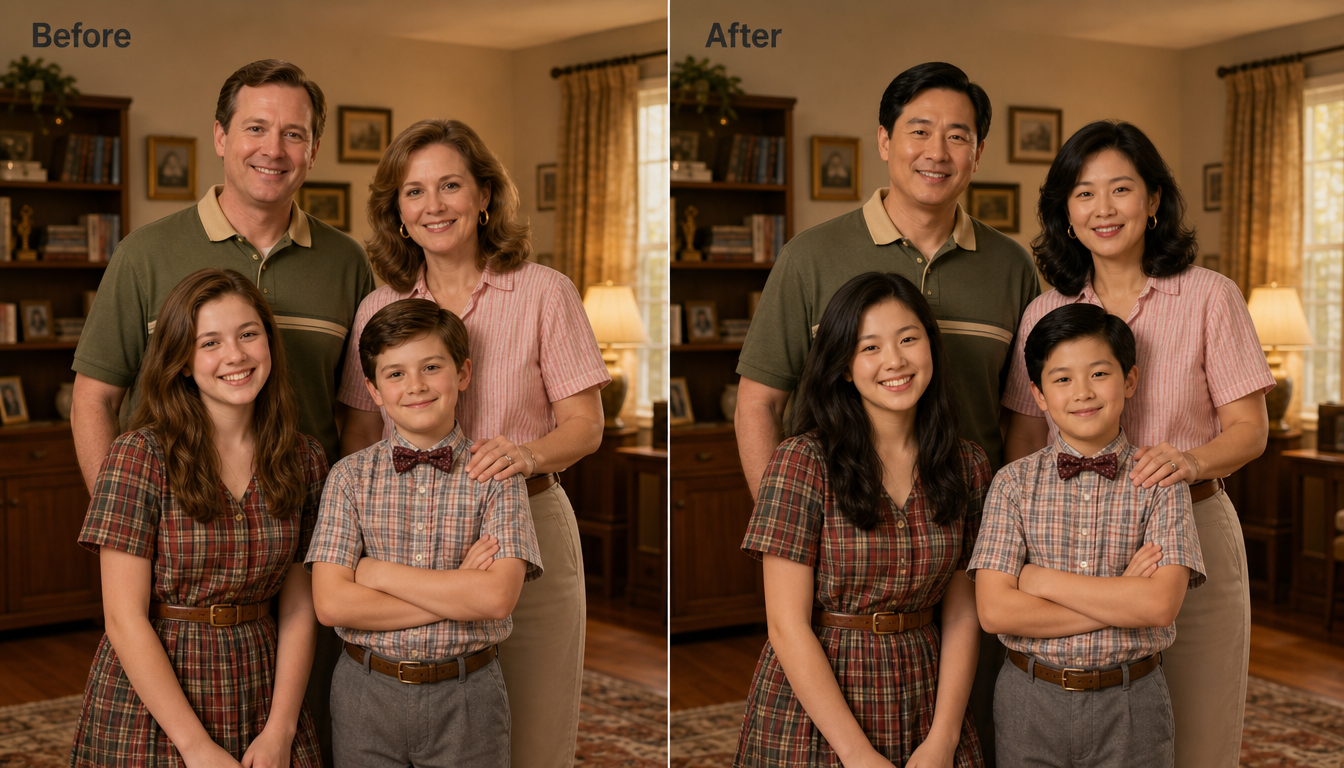
A family celebration video can capture the jokes, speeches, and small moments that photos miss. Sometimes, though, one person blinks, looks away, or cannot attend the event. Swapping several faces can help you create a playful version of the video, add absent relatives to a memory, or make a private family joke even more memorable.
The key is to treat a multi-face swap as an editing project, not a one-click trick. You need clear source photos, steady footage, good timing, and a careful review at the end. Always get permission before using someone’s face, especially if you plan to share the finished video outside your immediate family.
Step 1: Prepare the Video and Face Photos
Start with the best version of your celebration video. A short clip with steady camera movement, good lighting, and faces that remain visible will usually produce a more convincing result than a long, shaky recording. If your footage contains several people, choose a section where they are not constantly turning away, crossing in front of one another, or standing in deep shadow.
Trim the video before uploading it. Removing unrelated sections makes processing faster and gives you less footage to check later. For a first attempt, a clip between five and 20 seconds is easier to manage than an entire birthday party or wedding reception.
You will also need one clear reference photo for each face you want to use. Pick images with a similar angle and expression to the people in the video. A forward-facing portrait may not work well if the person in the video is shown in profile, and a photo with heavy filters can create unnatural skin texture.
For a straightforward browser-based workflow, EasyFaceSwap can help you prepare the face material and test the effect without installing complicated editing software. Use images that you have the right to use, and avoid uploading sensitive family footage if you are not comfortable with the service’s privacy terms.
Before you begin, write down which source face belongs to which person in the video. This small step prevents confusion when several relatives have similar hair, glasses, or facial features. It also helps you notice if you accidentally select the same source photo for two different people.
Step 2: Upload the Clip and Choose Each Face
Open the video face swap tool and upload your trimmed clip. Depending on the tool, you may need to upload the replacement photos first or select faces directly from the video. The basic process is the same: identify each target face, then pair it with the correct reference image.
For a dedicated workflow, the multiple face swap video tool is designed for changing more than one face in the same clip. Add the video, wait for the face detection step to finish, and inspect the face markers before confirming anything. Automatic detection can mistake a poster, a reflection, or a face in the background for a person.
Select the first target face and assign its replacement photo. Then repeat the process for each visible person. Work from left to right or from the most prominent person to the least prominent person, so you can keep track of your selections. If the interface lets you rename or preview selections, use that feature rather than relying on memory.
Check the boundaries around hats, hair, glasses, and ears. Face swapping usually focuses on the central facial area, but the result still needs to blend with the person’s head and body. A photo with a very different hairstyle may leave an obvious edge, particularly when the subject turns quickly.
If someone leaves the frame and returns later, confirm that the tool tracks the correct face throughout the clip. Face detection can lose its target when people overlap or when lighting changes. In that case, shorten the clip, choose a clearer segment, or process separate sections and join them afterward.
Step 3: Generate, Review, and Export the Video
Start with a preview or a lower resolution render if the tool offers one. This lets you catch wrong face assignments before waiting for a full export. Watch the entire preview instead of checking only the opening frame, since tracking problems often appear during movement.
Pay close attention to moments when people laugh, speak, turn their heads, or touch their faces. These movements reveal most artifacts. You may see a face stretch, flicker, become too smooth, or briefly jump onto the wrong person. A few imperfect frames may be acceptable in a funny family clip, but repeated errors usually need another pass.
Use this table as a quick review guide before exporting:
| What to check | What a good result looks like | What to do if it fails |
| Face identity | Each person keeps the intended face | Recheck the target and source pairing |
| Movement | The face follows turns and expressions | Use a steadier or shorter clip |
| Lighting | Skin tone matches the scene | Choose a better reference photo |
| Edges | Hair, glasses, and jaw look natural | Try a photo with a similar angle |
| Timing | The swap stays in place from start to finish | Split the video into smaller sections |
If the preview looks mostly right but one person causes trouble, do not immediately discard the whole project. Remove the difficult section, adjust the source image, or process that person in a separate clip. Smaller edits often give the software fewer competing details to track.
Export at the same frame rate as the original video when possible. Changing frame rate can make movement look less smooth, while excessive compression can soften faces and create blocky edges. Keep the original file unchanged so you can return to it if you want to try a different face combination later.
Tips and Common Mistakes
Good lighting matters more than image resolution alone. A sharp reference photo taken in poor light may work worse than a slightly smaller image with even lighting. Try to match the direction of light in the photo and video. If the celebration video is warm and dim, a bright outdoor portrait can look pasted on.
Avoid using a group photo as a source image when you can use an individual portrait. The tool may not know which face to isolate, and similar faces in the same image can confuse the selection process. Crop the chosen face only if the software recommends it, since excessive cropping can remove useful details around the cheeks and jaw.
Do not swap every face simply because the tool allows it. Background faces that are tiny, partly hidden, or visible for only a moment may create more visual noise than value. Focus on the people who matter to the story, such as the birthday person, the speaker, or a relative who could not attend.
Keep expressions in mind. Replacing a smiling face with a serious portrait can make the result feel strange even when the tracking is accurate. Choose a source image with a similar mood, head position, and mouth shape whenever possible.
One common mistake is expecting the edit to look realistic in every situation. Fast camera pans, hands covering faces, strong shadows, hair across the eyes, and people standing close together are difficult conditions for most automated tools. A face swap can be fun and effective, but it cannot recover details that are missing from the footage.
Privacy deserves the same attention as image quality. Ask relatives for permission, particularly when children appear in the video. Store the source photos and finished file securely, and think carefully before posting the result publicly. A private family group may be the right audience for a joke that would be confusing or uncomfortable on a public account.
Conclusion
Swapping multiple faces in a family celebration video works best when you keep the project focused. Start with a short, steady clip, gather clear reference photos, and match each source face carefully to the right person. Preview the result before exporting, then inspect movement, lighting, edges, and identity from beginning to end.
The most convincing edits usually come from simple choices rather than elaborate effects. Similar lighting, a matching expression, and a clean section of video can make a bigger difference than repeated processing. Treat the finished clip as a creative family keepsake, use everyone’s images respectfully, and save the original footage so you can always make another version.